Capturing HTTP Archive (HAR) requests can be invaluable for data scraping. This tutorial will guide you through the steps to get HAR requests using Mozilla Firefox, which can then be used to extract data for various applications.
What is a HAR File?
A HAR (HTTP Archive) file is a JSON-formatted archive file that records all network requests made by the browser. It includes details about each request, such as the URL, request and response headers, body content, and timing information. This information can be used for data scraping purposes.
Prerequisites
Before we begin, make sure you have the following:
- Mozilla Firefox browser installed
Steps to Capture HAR Requests
Step 1: Open Firefox Developer Tools
- Launch Mozilla Firefox.
- Navigate to the web page you want to scrape data from.
- Open the Developer Tools:
- Press
F12on your keyboard. - Or, right-click anywhere on the page and select
Inspect.
- Press
Step 2: Navigate to the Network Tab
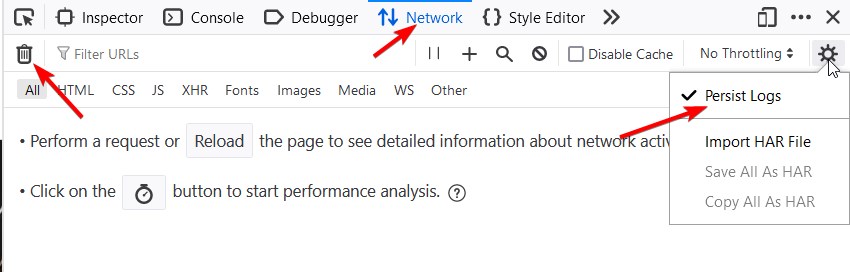
- In the Developer Tools pane, click on the
Networktab. - Ensure the network log is clear by clicking the
clearbutton (a circle with a line through it). - Select “Persist Logs” to ensure that all requests are saved if you want to visit different pages.
Step 3: Reload the Page
- Refresh the web page by pressing
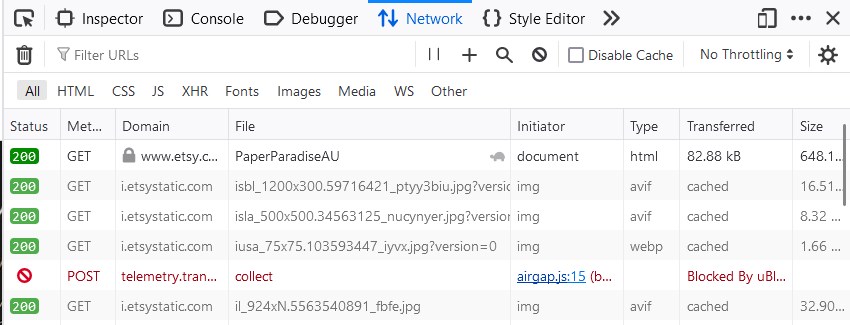
F5or clicking the refresh button in the browser. - As the page reloads, the Network tab will start capturing all the network requests made by the browser.
- Visit all the pages you want to scrape.
Step 4: Save the HAR File
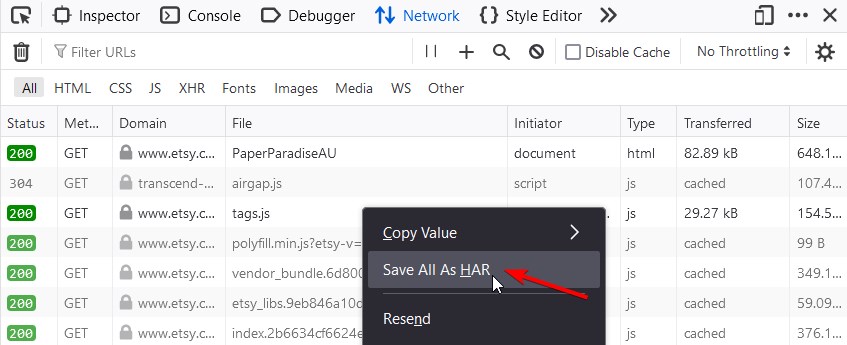
- Once the page has fully loaded, right-click anywhere in the list of network requests.
- Select
Save All As HAR. - Choose a location on your computer to save the HAR file.
Step 5: Extract Data from the HAR File
To scrape the data from your HAR file, you can now use our tools: HAR Xpath Scraper or HAR JSON Scraper.