
Capturing HTTP Archive (HAR) requests can be extremely useful for data scraping. This guide will show you how to obtain HAR requests using Google Chrome, allowing you to extract data for various purposes.
What is a HAR File?
A HAR (HTTP Archive) file is a JSON-formatted archive that logs all network requests made by the browser. It includes detailed information about each request, such as the URL, request and response headers, body content, and timing information. This data can be leveraged for data scraping.
Prerequisites
Before getting started, ensure you have the following:
- Google Chrome browser installed
Steps to Capture HAR Requests
Step 1: Open Chrome Developer Tools
- Open Google Chrome.
- Go to the web page you wish to scrape.
- Access the Developer Tools:
- Press
F12on your keyboard. - Or, right-click anywhere on the page and choose
Inspect. - Or, click on the three vertical dots (menu button) in the top-right corner, go to
More tools, and selectDeveloper tools.
- Press
Step 2: Navigate to the Network Tab
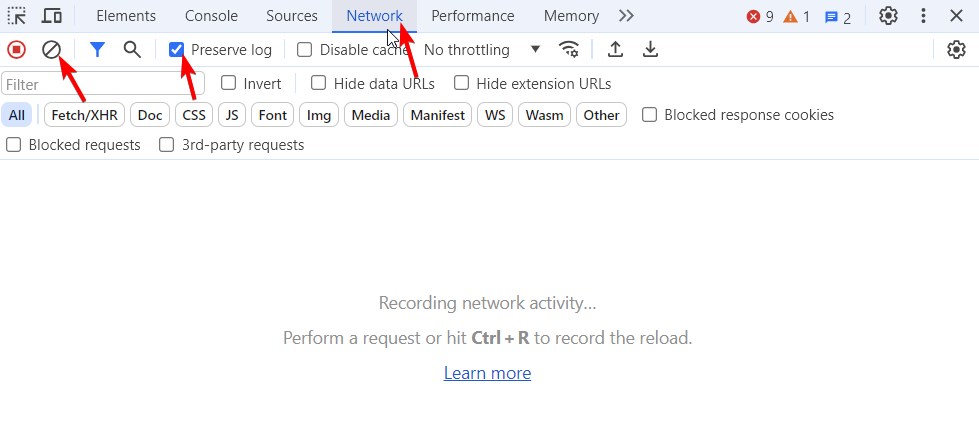
- In the Developer Tools panel, click on the
Networktab. - Clear the current network log by clicking the
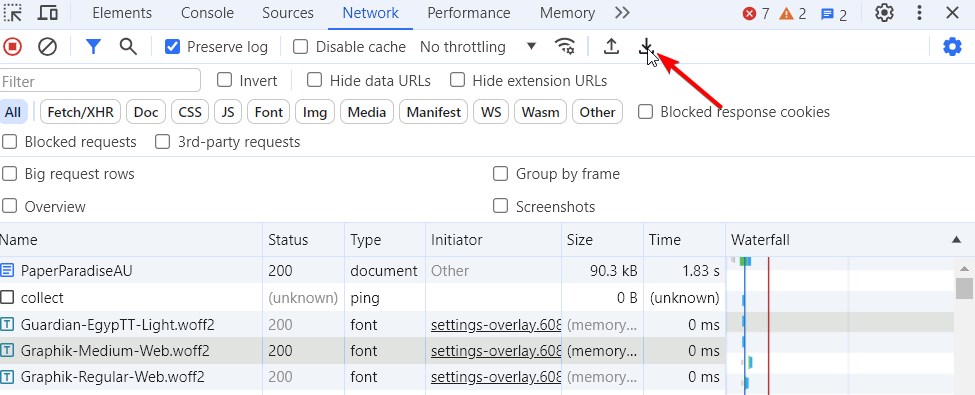
clearbutton (a circle with a line through it). - Enable “Preserve Logs” to ensure all requests are saved, even when navigating to different pages.
Step 3: Reload the Page
- Refresh the web page by pressing
F5or clicking the refresh button in the browser. - The Network tab will start capturing all network requests as the page reloads.
- Navigate through all the pages you intend to scrape.

Step 4: Save the HAR File
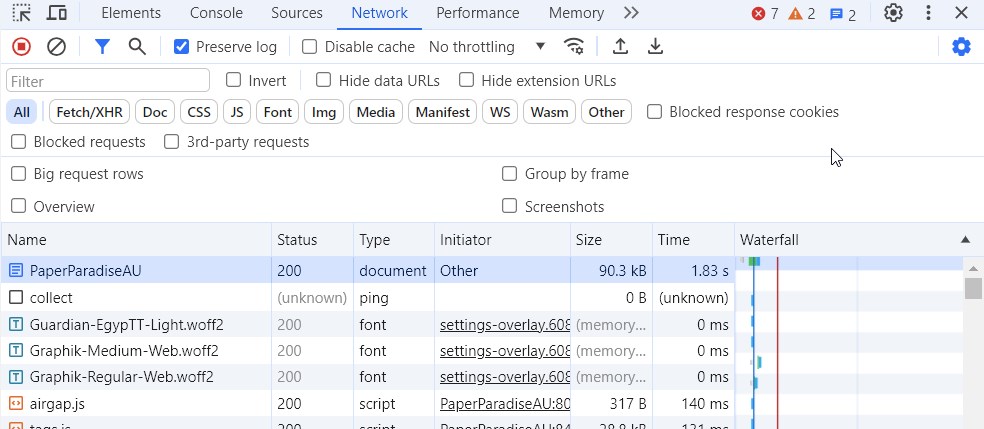
- Once the page has fully loaded, click on the download button.
- Save the HAR file to your computer.
Step 5: Extract Data from the HAR File
To extract data from your HAR file, you can now use our tools: HAR Xpath Scraper or HAR JSON Scraper.